
Watching
Episodes come from three places: online sources, torrents and a debrid service. All three end up in the same built-in player.
The anime page
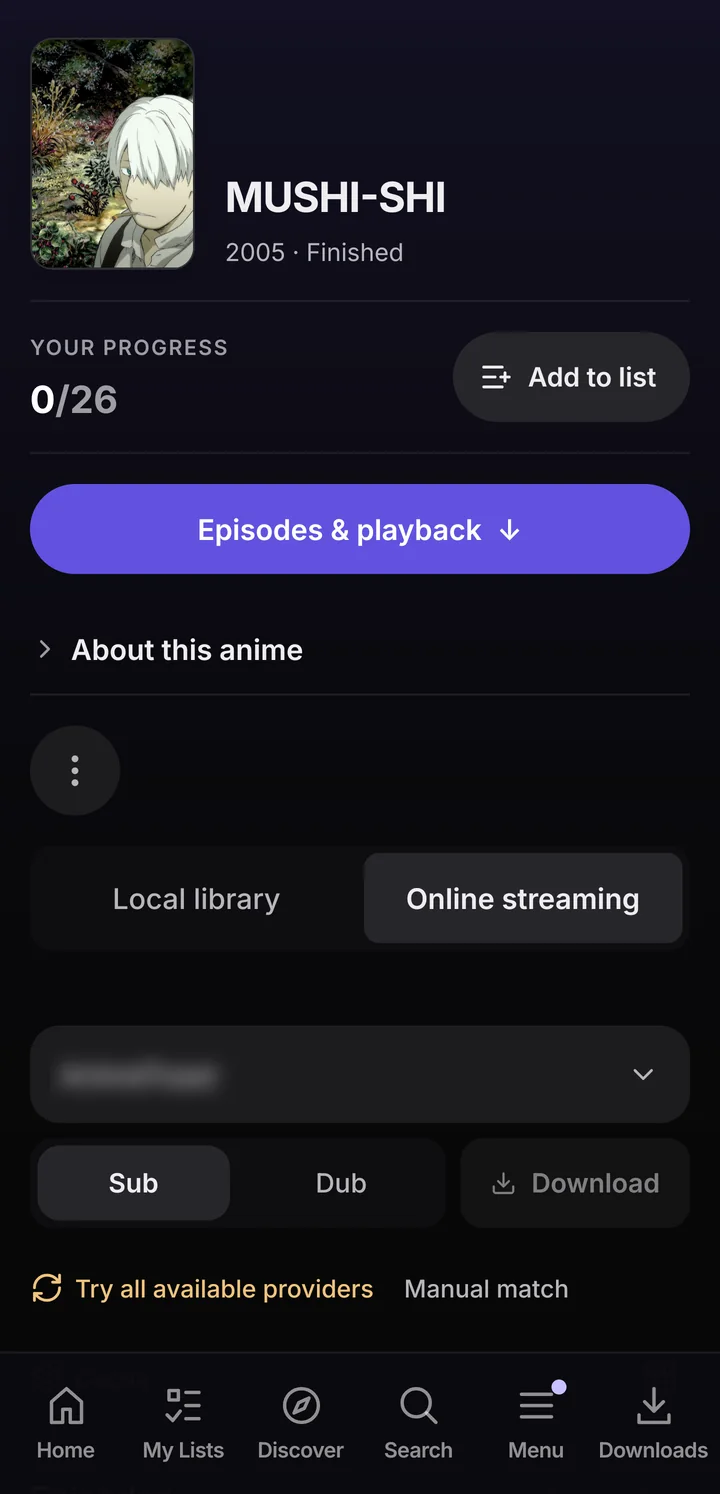
Open any anime and look for Episodes & playback. The tabs there are the ways you can watch it: Local library, Online streaming, Torrent streaming and Debrid streaming. A tab only shows when that way is switched on.
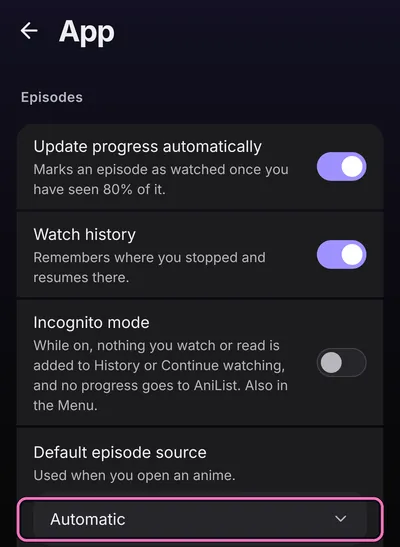
Which tab opens first is up to you:
Where SettingsAppEpisodesDefault episode source
Online streaming
Streams episodes from a streaming extension. You need at least one installed (see Extensions).
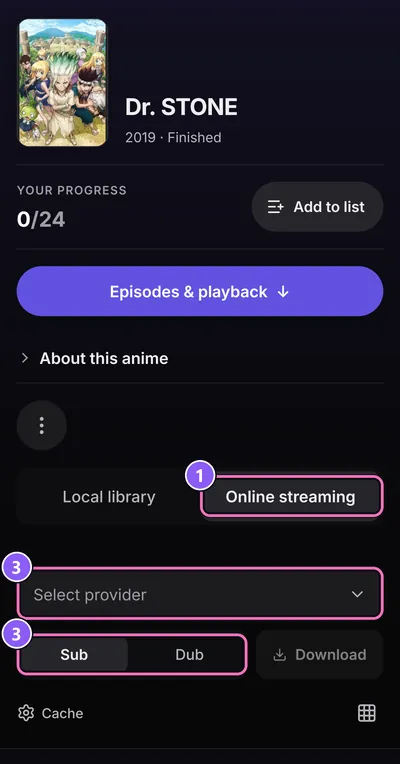
- Open an anime and the Online streaming tab.
- Tap an episode and then Play.
- To change where it comes from, open Sources & playback options and pick a Provider, a Server, and Dub or Subtitles.
The app remembers the source per anime. If nothing plays, Try all available providers goes through every installed one. Manual match helps when a provider picked the wrong show.
Stale episode list? Clear stream cache on the same page throws away the saved sources of this anime, and they load fresh.
To switch online streaming off: SettingsOnline streaming.
Torrent streaming
Plays an episode from a torrent while it downloads. You need a torrent provider extension first. Until one is installed, the settings page says No torrent provider is installed.
Where SettingsTorrents & debridTorrent streaming
- Turn on Torrent streaming. On an anime page, More (the ⋮ button) has the same switch under Tabs.
- Open an anime and the Torrent streaming tab.
- Tap an episode. A list of torrents opens. Narrow it with Resolution, Language or Sort by.
- Tap a torrent to start it. It plays while it downloads.
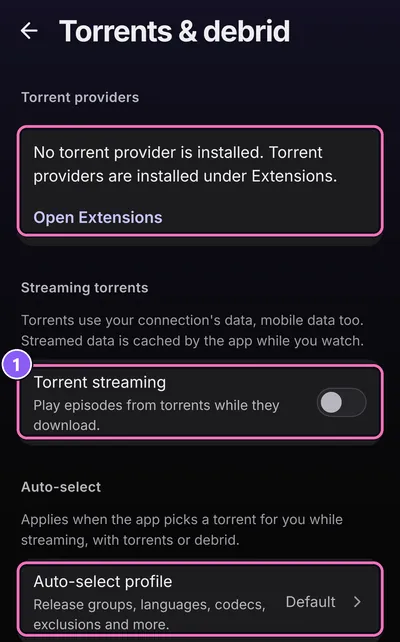
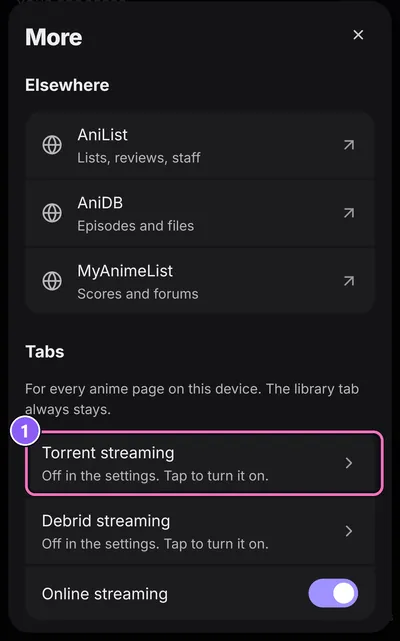
With Pick the best torrent on, an episode starts as soon as you tap it and the list is skipped. You decide what "best" means under SettingsTorrents & debridAuto-select: resolution, languages, release groups, excluded words, minimum seeders and size limits.
Torrents use your connection. On mobile data the app asks before a torrent starts; on Wi-Fi it starts right away. Preload the next episode is experimental and uses more data.
Debrid
A debrid service is a paid service that downloads torrents for you and streams them from its servers. You need an account there with API access.
- Go to SettingsTorrents & debridDebrid.
- Turn on Debrid service and choose your Provider.
- Paste your API key from the provider's account settings and tap Save key. The app checks it and says whether it's connected.
- Open an anime and use the Debrid streaming tab. Cached torrents start at once.
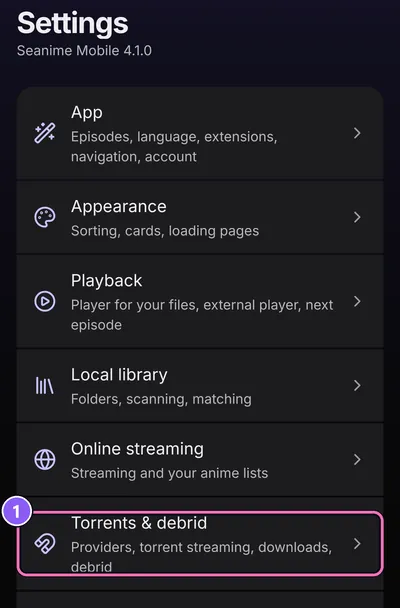
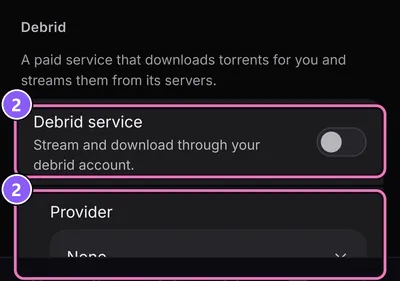
Debrid hasn't been tested on real hardware yet. If it misbehaves, please report it.
The player
Everything plays in the built-in player, whatever the source.
- Tap the picture to show the controls. Turn the phone for fullscreen.
- The bar along the top holds Previous episode and Next episode on the left. On the right sit Quality, Subtitles, Audio, Cast to a TV and Picture in picture, each only when the episode offers it. A stream with burned-in subtitles has no Subtitles button, and Cast to a TV only shows for files on the phone and torrents.
- Settings (the gear) opens the player menu.
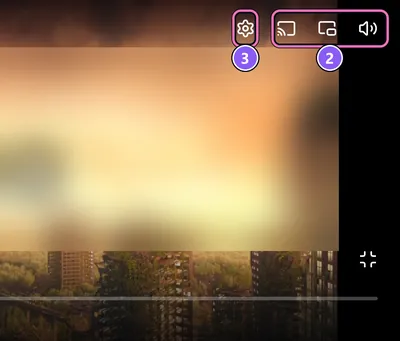
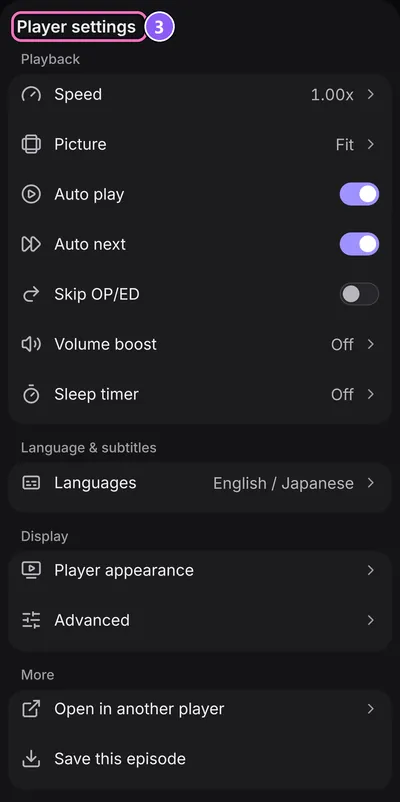
The menu has four groups:
- Playback: Speed, Picture, Auto play, Auto next, Skip OP/ED, Volume boost and a Sleep timer that pauses after the time you choose.
- Language & subtitles: see the next section.
- Display: Player appearance and Advanced.
- More: Open in another player and Save this episode, which downloads it.
Skip OP/ED uses the opening and ending timings from AniSkip, a community database. Auto next is the same switch as SettingsPlaybackPlay the next episode automatically: the next episode starts 5 seconds after one ends.
An episode counts as watched at 80%. That's SettingsAppUpdate progress automatically.
Subtitles
Pick a track with Subtitles in the player. Everything else is in the player menu:
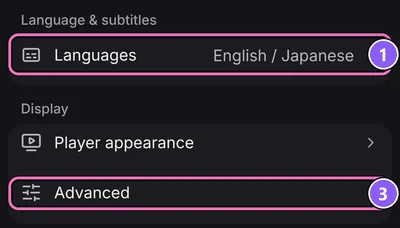
- Languages under Language & subtitles sets the subtitle and audio languages the app picks when an episode starts and the stream offers them.
- When the episode has a subtitle track, the same group adds Delay, which moves subtitles in time (plus shows them later, minus earlier), and Style for ASS tracks or Caption style for plain text tracks. Both set size, outline, shadow and background.
- Advanced under Display holds Subtitle blacklist and Translate subtitles.
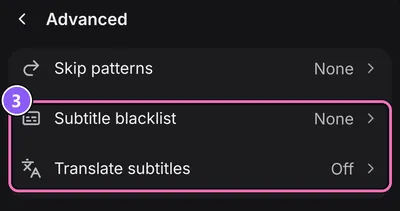
Subtitle blacklist keeps tracks with certain names from being chosen automatically. Separate the names with commas. Translate subtitles translates a text track into the language you choose. It needs a Provider: DeepL, or an OpenAI-compatible endpoint such as LM Studio or Ollama, plus an API key where the service wants one.
External player
Prefer VLC or another app? Set it once, then hand any episode over.
- Go to SettingsPlaybackExternal player.
- Under Player app, choose VLC, MX Player, mpv or Just Player. For another app, enter its Player link with
{url}for the stream, likeoutplayer://{url}. - In the player, open the menu and tap Open in another player. Playback here pauses and the other app plays the same stream.
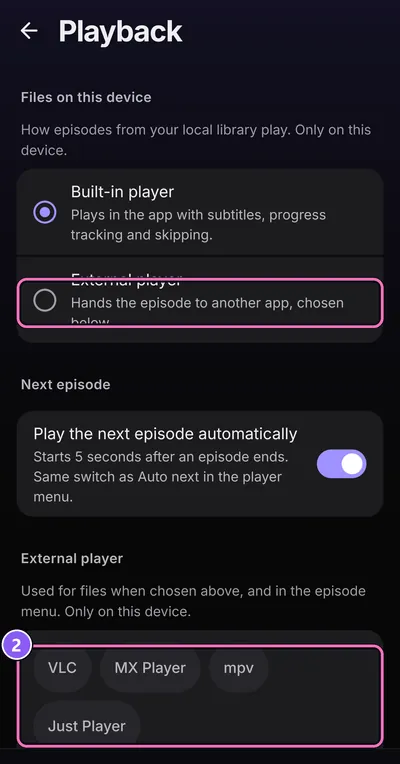
For files from your local library you can make the external player the default: SettingsPlaybackPlayer for files.
No tracking outside the app. Progress isn't saved while an episode plays in another app. Mark it as watched yourself afterwards.