
Getting started
The app starts empty on purpose. You pick a language, decide between AniList and a local account, and install the sources you want to watch and read from.
Install
Seanime Mobile needs Android 7.0 or newer. It comes as an APK from GitHub, not from the Play Store, so Android asks once whether your browser may install apps.
Every step of the install, the Play Protect warning and the checksum check are on the Help page. Coming from 2.0.33? Read Updates there first.
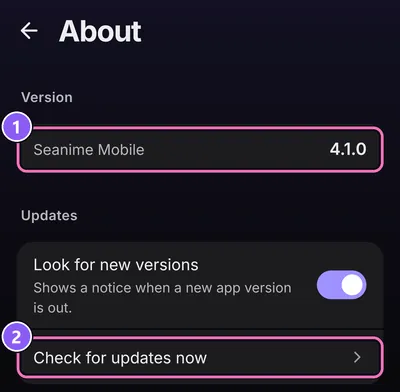
Once it's installed, check that you got the right version:
Where SettingsAbout
- Under Version you see Seanime Mobile and the version number.
- Check for updates now looks for a newer version right away.
First start
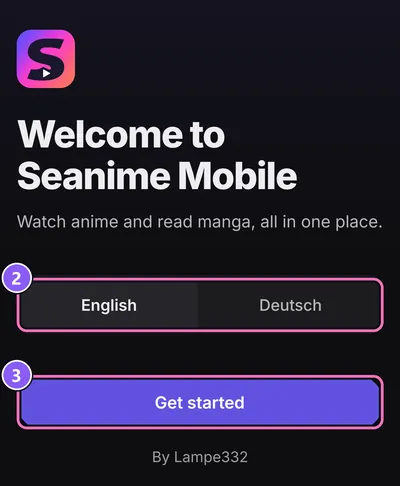
One screen, one choice.
- Open the app. It greets you with Welcome to Seanime Mobile.
- Under Language, pick English or Deutsch.
- Tap Get started.
Empty pages are normal. No source is installed and your lists stay empty until you connect AniList or add titles. Online streaming and manga are switched on from the start; you can turn either off in Settings.
AniList or local account
With AniList, your lists and progress live in your AniList account. Without it, the app keeps them on the phone in a local account.
Connect AniList
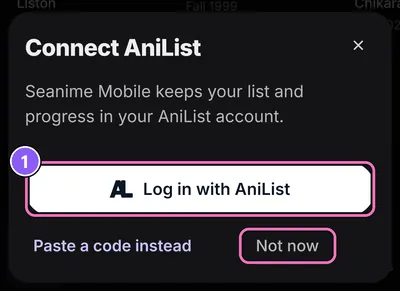
- Tap Log in with AniList. AniList opens in your browser.
- Log in there and allow access. AniList shows a code: copy it.
- Come back to the app. It finds the code by itself and says Code found. Connect to finish. Tap Connect.
If the code isn't picked up, use Paste a code instead and paste it by hand.
Use a local account
Tap Not now. Lists, progress and status then stay on the device and work without AniList at all. You can sign in later from the menu:
Where MenuSign in
Moving the local lists to AniList afterwards is covered in Lists and AniList. To sign out: SettingsAppAccountSign out.
Extensions
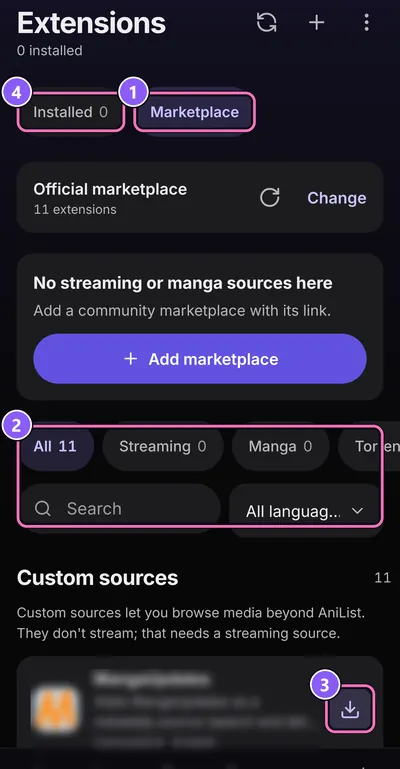
Episodes and chapters come from extensions you install yourself. None comes preinstalled. The official Seanime marketplace is set from the start, but right now it only lists custom sources, no streaming or manga sources. The Marketplace tab tells you so. To get those, add a community marketplace (next section) and install from there with the same steps.
Where MenuExtensionsMarketplace
- Open the Marketplace tab. It says Official marketplace at the top.
- Narrow the list with Type, Content language or Search.
- Tap Install on the extension you want, for example a streaming source and a manga source from a community marketplace.
- Switch to the Installed tab to see what you have. Extensions that need something from you show up under Needs attention.
The app checks installed extensions for updates and shows a badge when one is waiting. Check for updates and Update all sit on the same screen.
Have a link instead? Add extensions offers From a link for a single extension and From a repository for a .json repository, which installs all its extensions at once. Links with http:// get a warning, because the code could be swapped on the way.
A guided version of these steps: SettingsAppExtensionsShow the setup tutorial.
Community marketplace
The official marketplace has no streaming or manga sources at the moment. A community marketplace adds them, and you can switch back any time.
Heads-up: community marketplaces are made by the community. Their extensions get scanned automatically, but nobody checks them by hand, so they aren't 100% safe. Only install what you trust.
- Copy the marketplace link. The start page has one in step 4 of the setup.
- Go to MenuExtensionsMarketplace and tap Change (or Add marketplace).
- Tap Paste link. The link has to start with
https://. - The app checks the link and shows how many extensions the marketplace has. Tap Add.
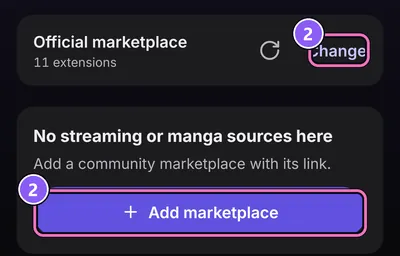
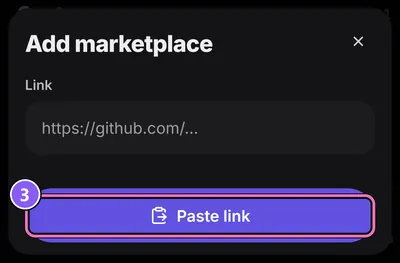
To go back, open the same sheet and use Switch to Official marketplace. Marketplaces you added before can be added again with one tap.