
Playlists, casting, Nakama
Line up episodes from different anime, send them to the TV, or play what's on your PC.
Playlists
Where HomePlaylists
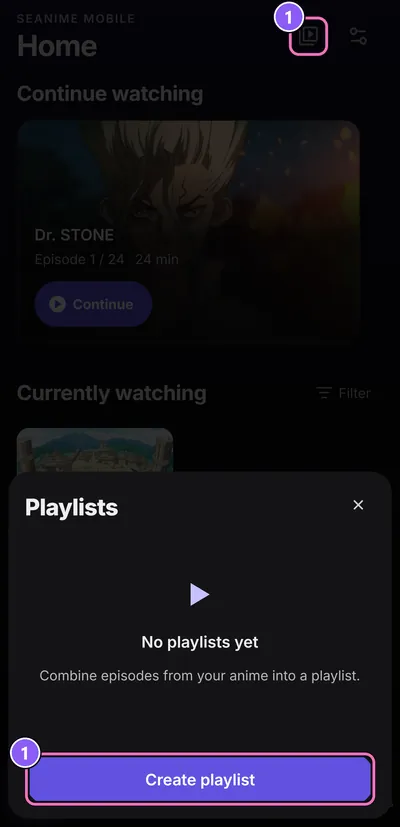
- Tap Playlists on Home, then Create playlist.
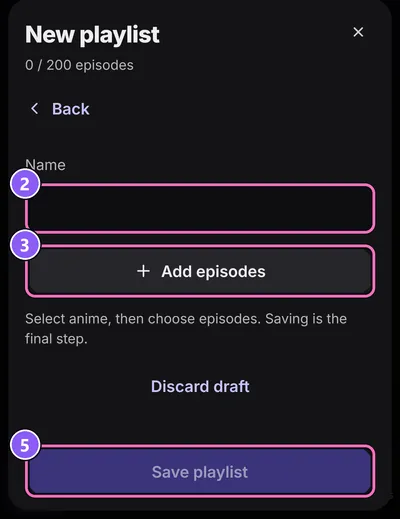
- Give it a Name.
- Select anime from your collection (Current, Paused, Planning or All), then choose their episodes. Move episode up and Move episode down set the order.
- Under Choose source, pick where the episodes play from: Online streaming, Torrent streaming or Debrid streaming.
- Tap Save playlist, then Play.
While a playlist runs, a bar lets you jump to the Previous episode or Next episode, or Stop playlist. For the episode that's playing, the app can ask Update progress? so your list stays right.
Cast to a TV
Sends the episode that's playing to a TV in the same Wi-Fi. This works for files on the phone (saved episodes and your local library) and for torrents. Online streams stay on the phone, so the button doesn't show for them.
- Start an episode and tap Cast to a TV in the player.
- The app looks for TVs in your Wi-Fi. Tap yours. Nothing found? Turn the TV on, check it's on the same Wi-Fi, and tap Search again.
- The phone becomes the remote: Back 10 seconds, Pause, Forward 10 seconds, the volume and Next episode.
- Done? Stop casting, or Continue on this device to take the episode back to the phone.

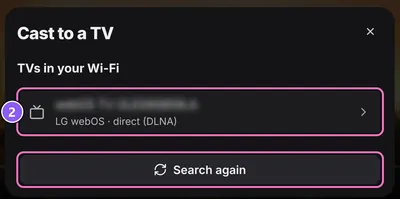
- LG webOS and other DLNA TVs
- Direct over DLNA. Tested on an LG TV, without checking subtitles on the TV.
- Google TV, Chromecast
- Over Google Cast, without subtitles. Not tested on real hardware yet.
Nakama
If you run Seanime on a PC or home server, Nakama lets the app play that library. The PC is the host; the phone or tablet connects to it. Phones and tablets can't host.
- Set up Nakama as host in Seanime on your PC and note its address and passcode.
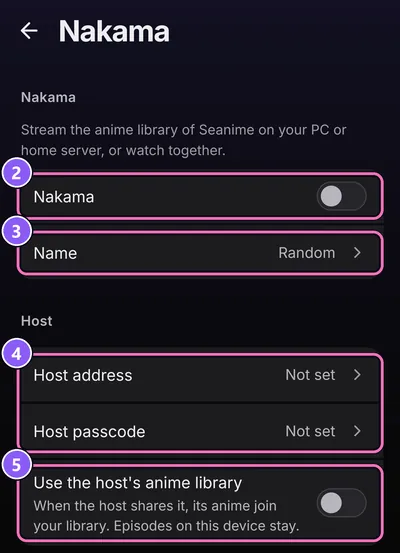
- On the phone, go to SettingsNakama and switch on Nakama.
- Optionally enter a Name: that's how others see you. Empty gives a random ID.
- Enter the Host address and Host passcode.
- Switch on Use the host's anime library. The host's anime join your library; episodes on this device stay.
The status line says Connected or Not connected. If it fails, check the address, the passcode and that the host is running, then tap to try again.
Once Nakama is on, it also appears in the Menu, with Reconnect and the connection settings.
Use https:// if you can. Without it, the passcode and the streams go over the network unencrypted, and the app warns you about it.
Nakama was tested with the app as a guest of Seanime on a PC: library and playback. Watch parties and cloud rooms aren't available since version 4.