
Manga
Read online or offline, page by page or as one long strip. Chapters come from a manga source extension, your list and progress from AniList or the local account.
Find and open a manga
Where MenuManga
- Open Manga from the menu. The screen shows the manga on your list, sorted by status, with Continue reading at the top.
- Filter narrows the list, for example to Only manga with new chapters.
- On a manga's page, Start reading or Continue reading takes you straight to the right chapter.
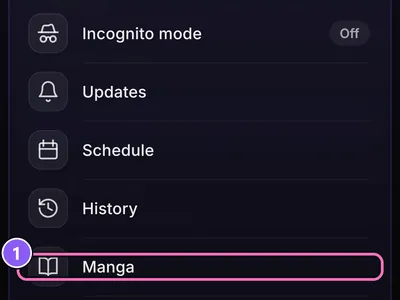
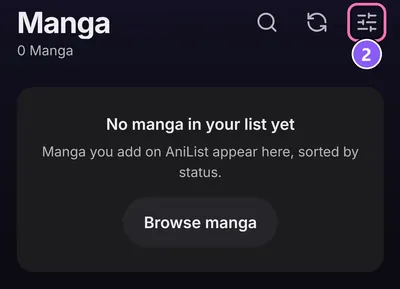
To find something new, search under Search and switch it to manga, or browse Discover.
Source and chapters
Chapters need a manga source. Install one first (see Extensions).
- On the manga's page, open the Online reading tab. The Source picker sits at the top, with More next to it.
- Choose the Source, then a Language and a Translator (scanlator) if the source has several.
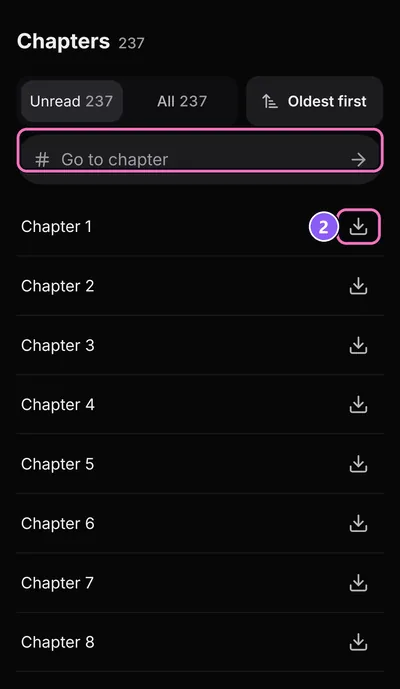
- The chapter list fills in under Online reading. Sort it newest or oldest first, or use Go to chapter.
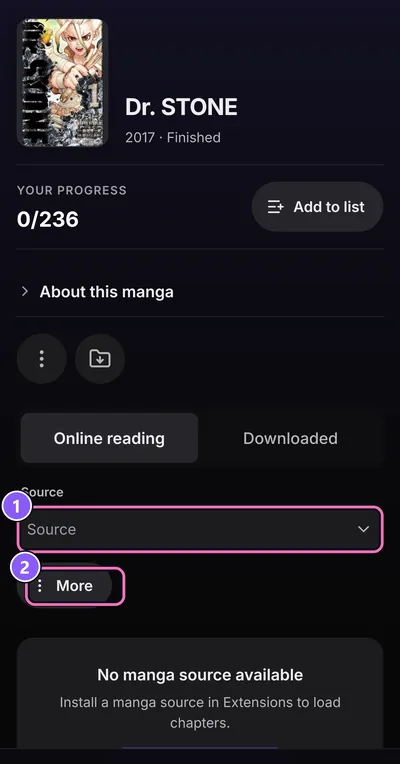
The source you pick for a new manga is set in SettingsMangaDefault source. The same page has Update progress automatically, which saves your progress at the end of a chapter.
Wrong title at the source? Manual match lets you pick the right one yourself. For manga you're reading, Reload source looks for new chapters at the source.
The reader
- Tap the middle of the page to show or hide the controls.
- Previous chapter and Next chapter stay in the language and scanlator you're reading.
- Reader settings (the gear) holds the rest.
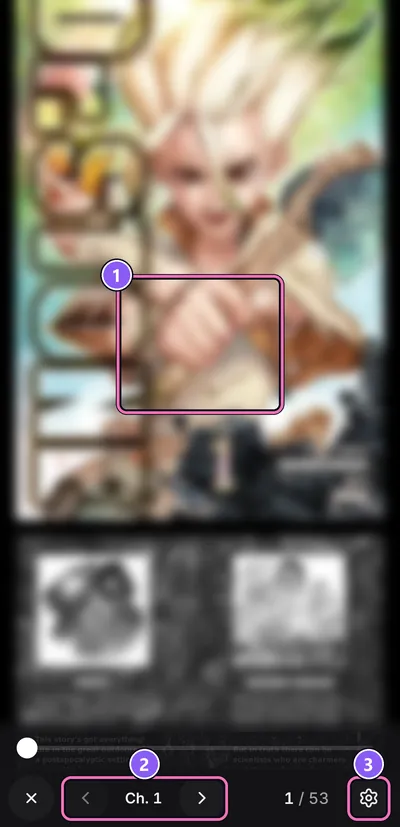
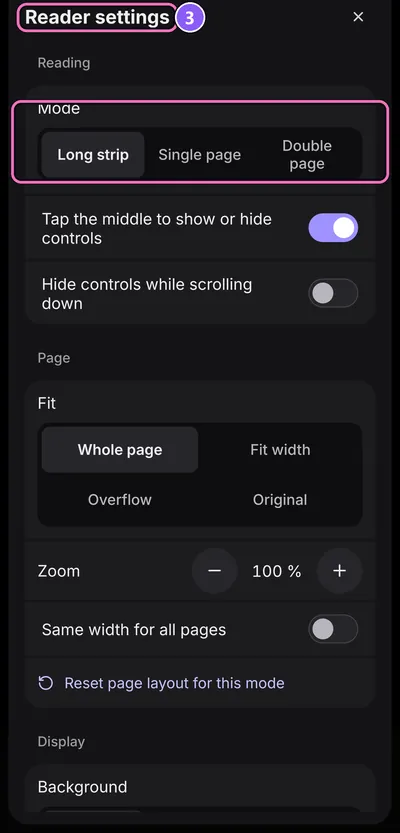
- Mode
- Long strip for webtoons, Single page for classic manga, or Double page.
- Direction
- Left to right or Right to left.
- Fit
- Whole page, Fit width, Overflow or Original.
- Zoom and page width
- Zoom, Page width and Same width for all pages. Reset page layout for this mode puts them back.
- Display
- Background in black, gray or white, Brightness, Keep the screen on and the Gap between pages.
Each mode keeps its own page layout, so a long strip and single pages can look different.
Download chapters
- On the manga's page, stay on Online reading.
- Tap the download button next to a chapter. For everything you haven't read yet, use More and Download unread chapters, then Add to queue.
- Saved chapters move to the Downloaded tab and open without a connection.
All downloaded manga in one place: Downloads on a manga's page opens the list, with Start / resume and Pause for the queue. On the Manga screen, Read downloads does the same.
New chapter alerts
The app can tell you when a manga you're reading has a new chapter. It checks the source every few hours.
- Go to SettingsAppNotify about new chapters and switch it on.
- Allow notifications when Android asks.
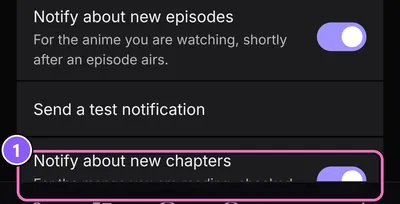
The same group has Notify about new episodes for anime, and Send a test notification to check that alerts arrive. Missed one? Updates lists new chapters too.