Lists and AniList
Your watch and read lists, your progress and your scores. With AniList they sync to your account; with the local account they stay on the phone.
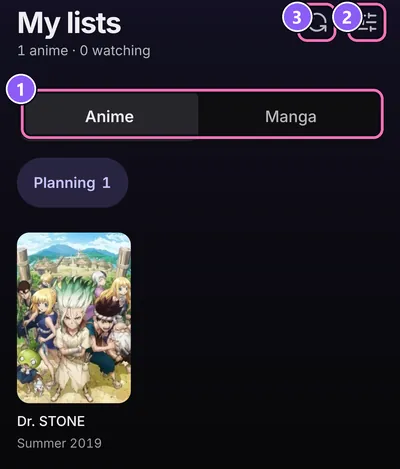
My lists
Where My Lists in the bottom bar
Switch between anime and manga at the top. Your entries are grouped by status. Filter and the search field apply to every list at once, and Stats shows numbers about what you've watched and read.
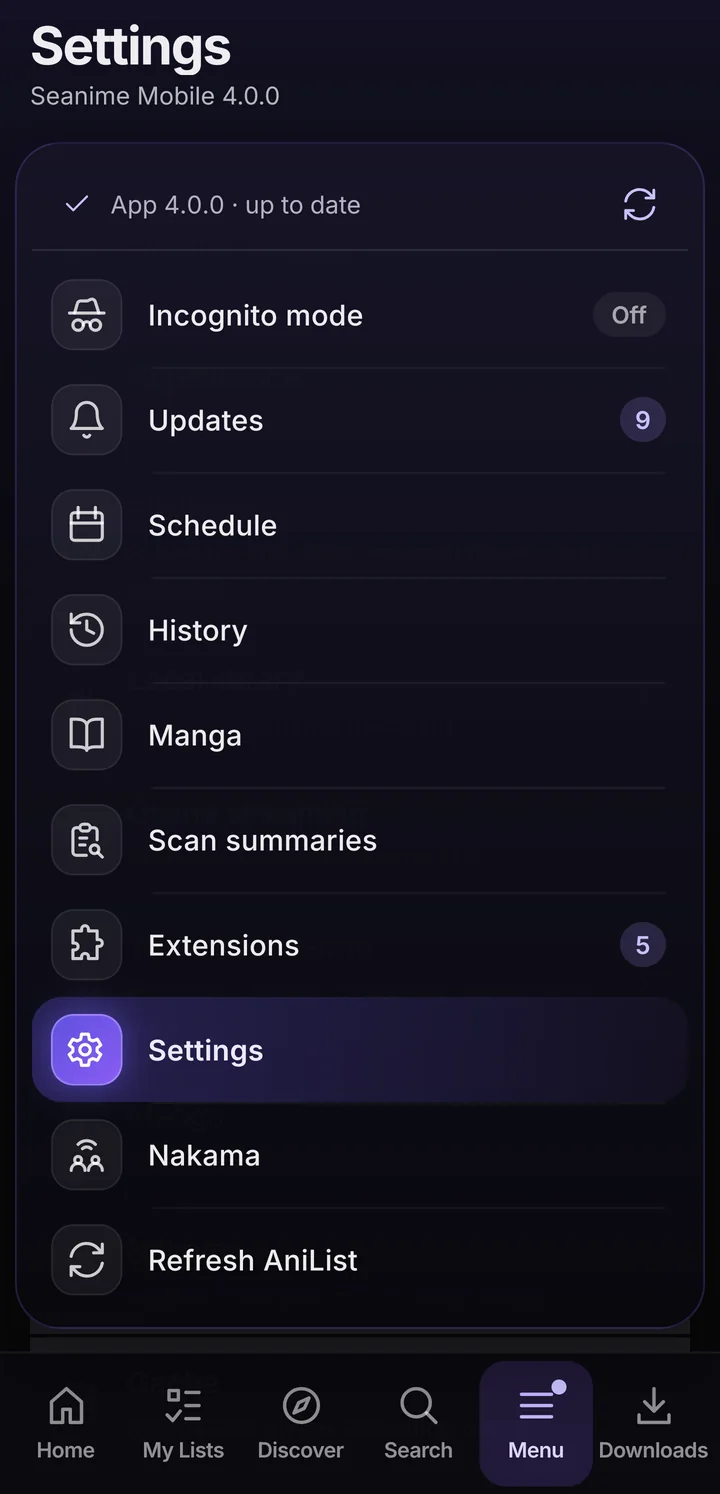
Changed something on the AniList website? Refresh AniList reads your lists again. The same action is in the Menu.
Add and edit entries
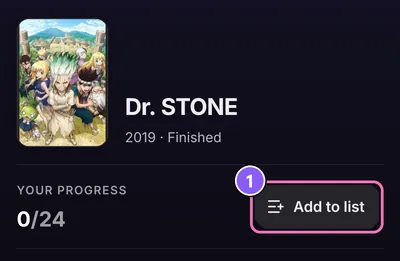
- Open an anime or manga and tap Add to list.
- Set Status, Progress and Score, plus the Start date and Completion date if you track those.
- Tap Save. Remove from list takes it off again.
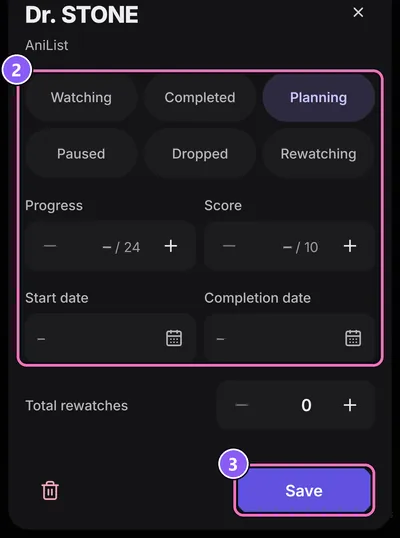
Quick actions
Long-press a cover anywhere in the app for shortcuts: Add to list, +1 episode or +1 chapter, and Continue reading.
Offline and AniList outages
The app keeps working when AniList is down or you're offline. Progress, status and scores you change wait on the phone and go out when AniList answers again. Nothing is lost.
- A small pill on Home and My lists shows how many changes are waiting.
- Tap it to see them under Changes for AniList.
- Tap Send now to try right away instead of waiting.
While AniList fails, the app shows the data it saved last. Cache-only mode in SettingsApp does this on purpose: it sends no requests to AniList. It also turns on by itself when AniList fails and off again once AniList answers.
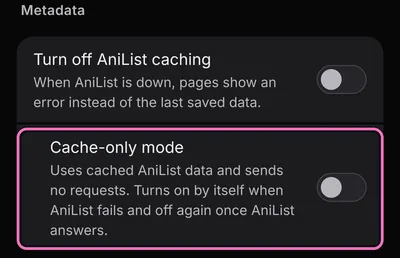
Local account
Without an AniList login, the app uses a local account. Lists, progress and status stay on the device and everything else works the same.
Move local lists to AniList
- Sign in with AniList: MenuSign in.
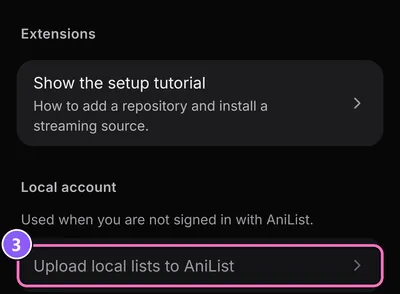
- Go to SettingsAppLocal account.
- Tap Upload local lists to AniList and confirm with Upload. Your local lists are written to your AniList account.
The local account's lists are part of every backup, so a new phone doesn't mean starting over.
Home
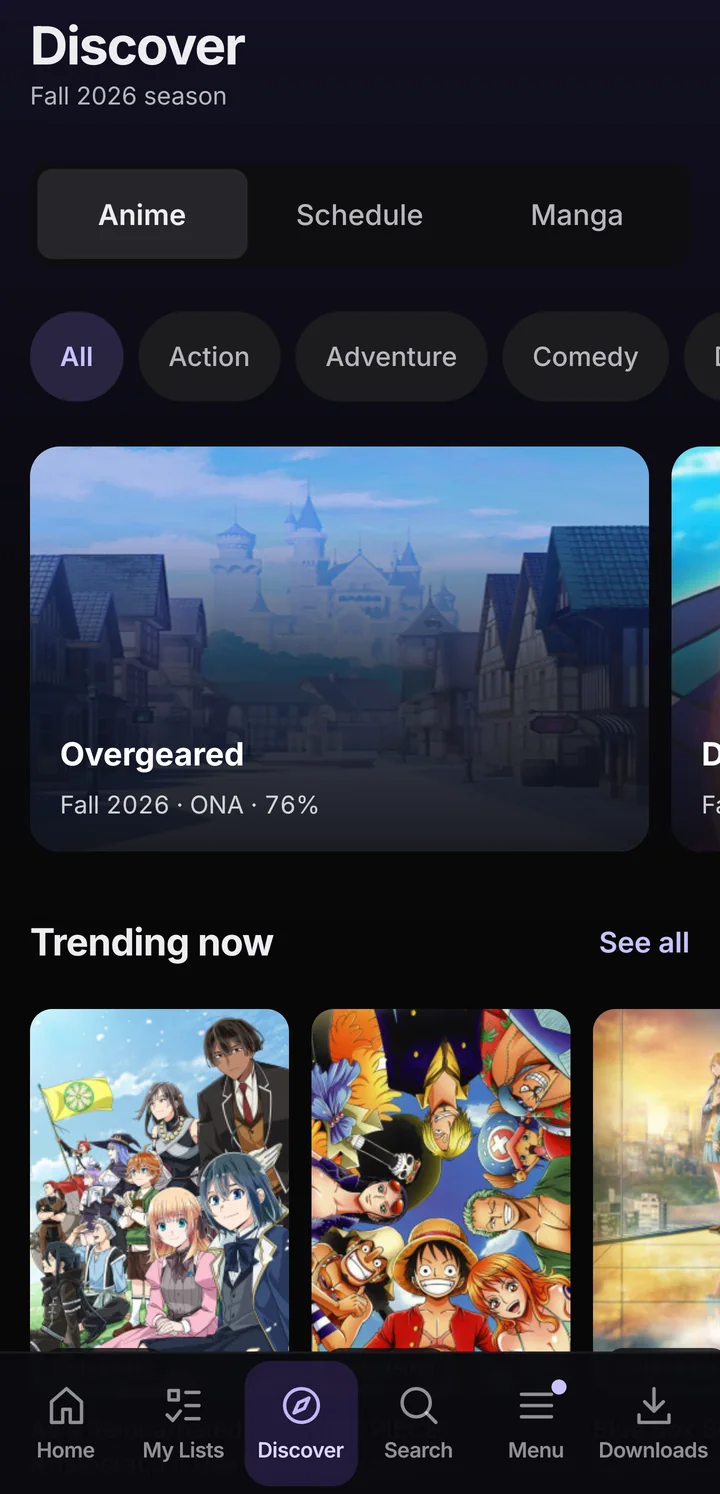
Home opens with Continue watching: the next episode of everything you're in the middle of, also anime you started without adding them to a list. Below that come sections like trending anime, top rated anime and manga, and Missed sequels.
- Tap Customize on Home. The Customize Home sheet opens.
- Reorder sections with Move up and Move down, or set a section up under Options.
- Add more from More sections. Changes save automatically.
A banner image behind the title on Home: SettingsAppearanceBanner.