
Downloads
Keep episodes on the device for the train, the plane or a bad connection. The Downloads tab in the bottom bar shows everything that's saved or still coming in.
Download episodes
- Open an anime and the Online streaming tab.
- Tap the download button. The Download episodes sheet opens.
- Choose This episode or tick several under Episodes. Quick selection picks a range for you.
- Tap Download. Episodes you already saved are skipped, and the queue keeps running in the background.
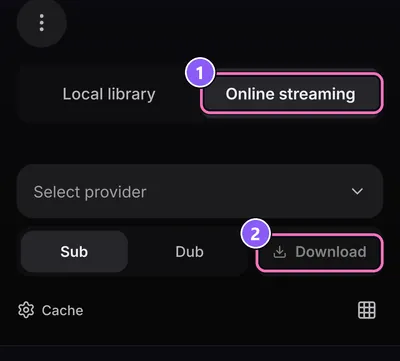
While an episode plays, Save this episode in the player menu does the same for that one episode.
The Downloads tab lists your anime with their saved episodes. Filter by All, Ready or Active, or use Select and Delete selected to clear space.
Mobile data: with Download on Wi-Fi only switched on, episode downloads wait until you're on Wi-Fi. The switch is on the Downloads screen and in SettingsApp.
Storage: with less than 256 MB free, downloads pause and start again once you free up space.
Next episodes automatically
The app can fetch the next one to three episodes of the anime you're watching, so the next one is always there.
- Open the Downloads tab.
- Find Download next episodes automatically.
- Pick 1 episode ahead, 2 episodes ahead or 3 episodes ahead.
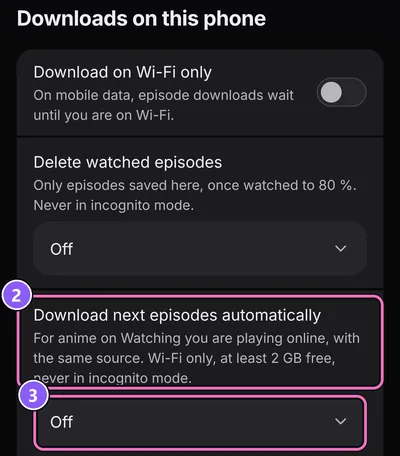
It works for anime on your Watching list that you stream online. It's off until you choose a number, and it only downloads on Wi-Fi.
Delete watched episodes
Saved episodes can clean up after themselves.
- Open the Downloads tab.
- Set Delete watched episodes to After watching, or to Keep one episode back if you like to rewatch the last one.
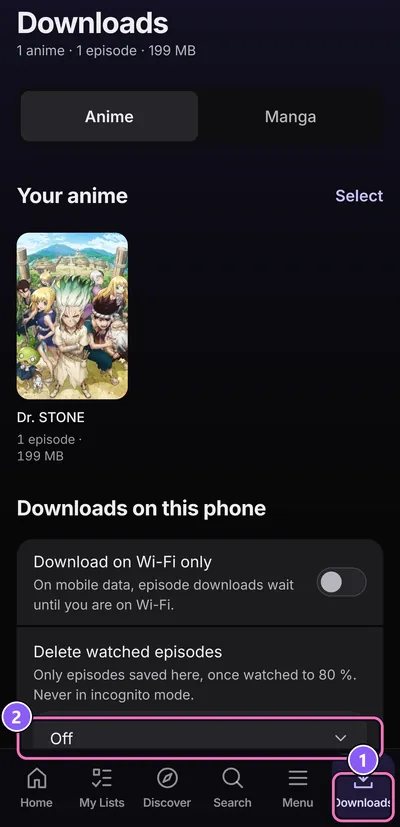
It only touches episodes saved here, once you've watched 80% of them, and never in incognito mode.
Download a torrent
Torrent downloads land in your local library folder, so set one first (next section). You also need a torrent provider extension: without one, Download a torrent and the Torrents tab don't show up.
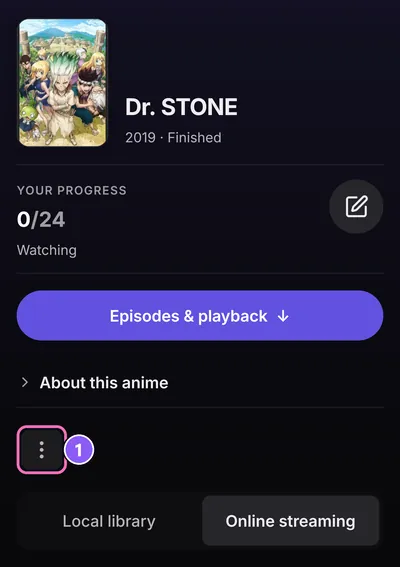
- Open an anime and tap More (the ⋮ button).
- Choose Download a torrent.
- Pick a torrent and tap Start download. Choose Torrent client to load it from other people, or Debrid service if you set one up.
Progress is under DownloadsTorrents. There you can pause, resume and remove a torrent. Remove from the list stops sharing and keeps the files; Delete torrent and files removes everything it downloaded.
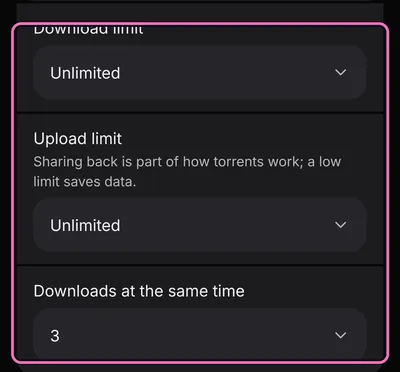
Speed limits and how many run at once: SettingsTorrents & debridDownloads with Download limit, Upload limit and Downloads at the same time.
Local library
Have anime files on the phone or a memory card? Point the app at the folder and they show up under the Local library tab of each anime.
- Go to SettingsLocal libraryLibrary folder.
- Pick the folder, or type its path as the device shows it. Add another folder adds more.
- Android asks for All files access. Allow it, or the app can't read the folder.
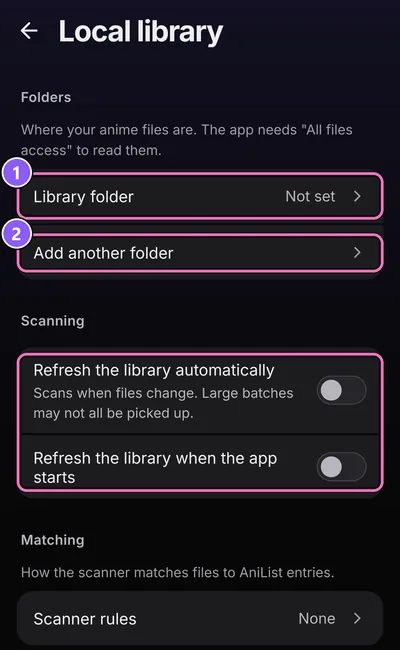
Under Scanning you decide when the app looks for new files: Refresh the library automatically when files change, and Refresh the library when the app starts.