
Backup, widgets, updates
Keep your setup safe, put the next episode on your home screen, and stay on the newest version.
Backup and restore
Where SettingsAppBackup
One file holds your settings, extensions, marketplaces, playlists, watch history, Home layout, the local account's lists and AniList changes that are still waiting. Sign-ins, passwords and keys never go into it, and neither do downloaded videos.
Make a backup
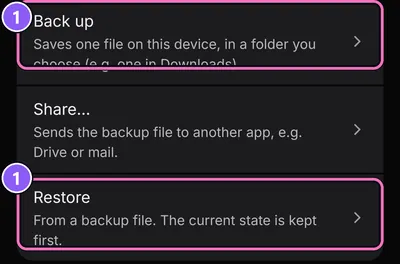
- Tap Back up.
- Choose a folder on the device, for example one in Downloads. The app saves the file there.
Share… sends the file to another app instead, for example Drive or mail.
Restore
- Tap Restore and pick the backup file.
- The app shows what the file contains and which version made it, before anything changes.
- Choose Merge to add it to what you have, or Replace to swap your data for the backup.
- The app restarts with the restored data.
The state before the restore is kept. Undo last restore brings it back.
On a new phone you sign in to AniList and enter debrid or translation keys again after the restore, since those are never in the file.
Home screen widgets
Where SettingsAppHome screen widgets
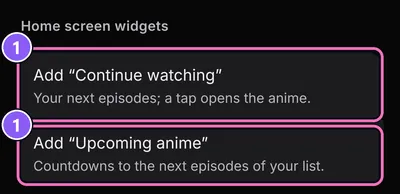
- Continue watching
- Your next episodes. A tap opens the anime.
- Upcoming anime
- Countdowns to the next episodes of your list.
- Tap Add “Continue watching” or Add “Upcoming anime”.
- Android asks where to place it. Confirm.
Some launchers can't add widgets from inside an app. Then long-press an empty spot on your home screen, open the widgets list and add it from there.
Tablets
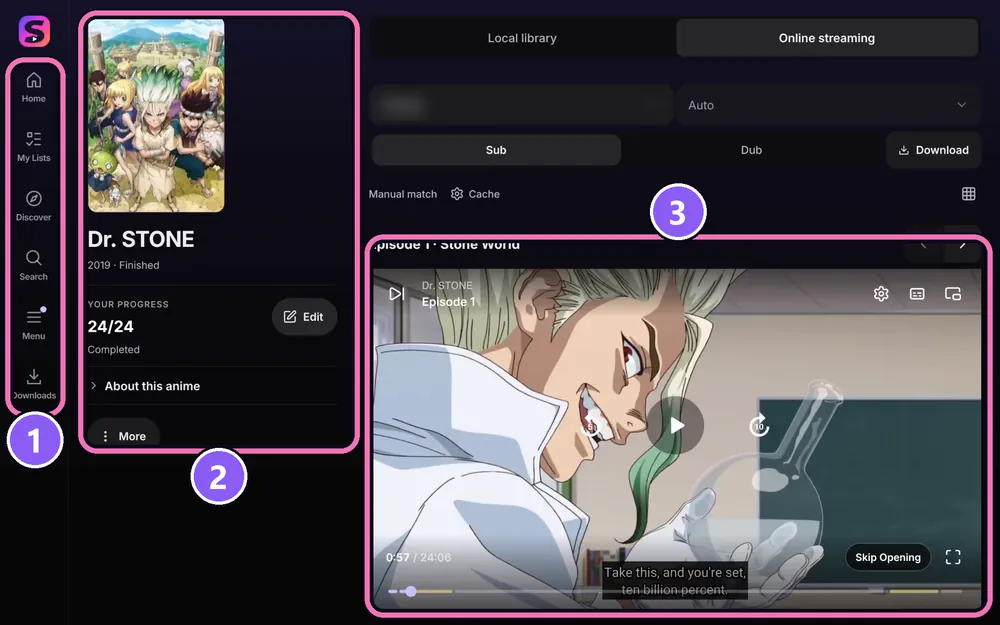
The same APK runs on tablets with a layout of its own: a navigation rail on the side instead of the bottom bar, Settings in two panes with the areas on the left, and anime pages where the cover stays put while the episodes scroll. On a wide tablet, sheets slide in from the right.
- The navigation rail on the left replaces the bottom bar: Home, My Lists, Discover, Search, Menu and Downloads.
- On an anime page, the cover, your progress and Edit stay in the left column.
- The right side scrolls on its own: source, Sub or Dub, the episode list and the player.
App updates
The app looks for a new release on GitHub when it starts and shows a notice when one is out.
- Tap the notice, or check by hand: SettingsAboutCheck for updates now.
- Read What’s new and tap Download and update.
- The app checks the download, the app version and the signature. It installs a file only when it matches the checksum GitHub publishes for it.
- Android asks for permission to install from this source the first time. Allow it and confirm the install.
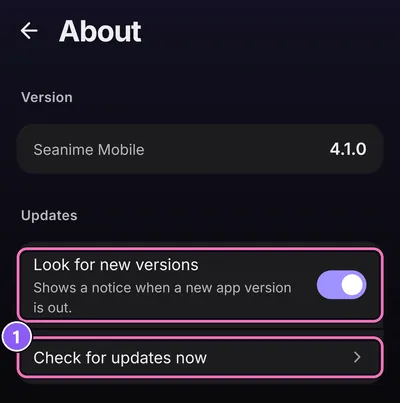
Don't want the notice? Switch off Look for new versions in the same place. Installing interrupts playback and running downloads, so pick a quiet moment.
To check a downloaded APK yourself, or if you're still on 2.0.33, see Check the file and Updates on the Help page.