
Discover, search, history
Ways to find the next thing to watch, see what airs when, and look back at what you already watched and read.
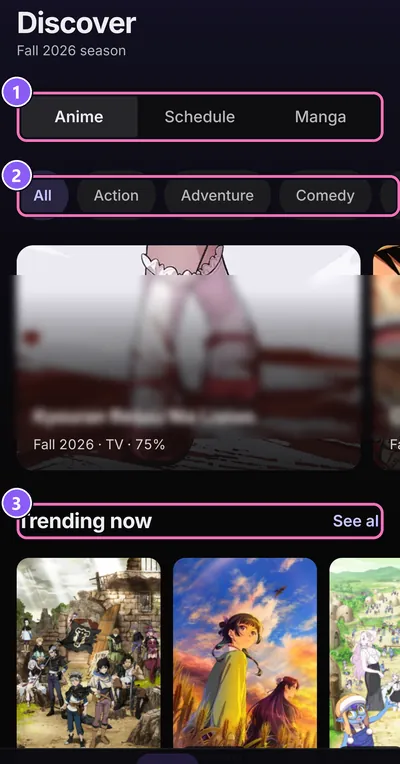
Discover
Where Discover in the bottom bar
The season's Spotlight at the top, then rows like Trending now, Coming soon, Trending movies and You might have missed: sequels to anime on your list that you haven't added yet. The genre chips filter the page; All genres resets it. Discover also has a manga side with trending manga, manhwa and manhua.
Long-press a cover for a Preview and the quick actions.
Search
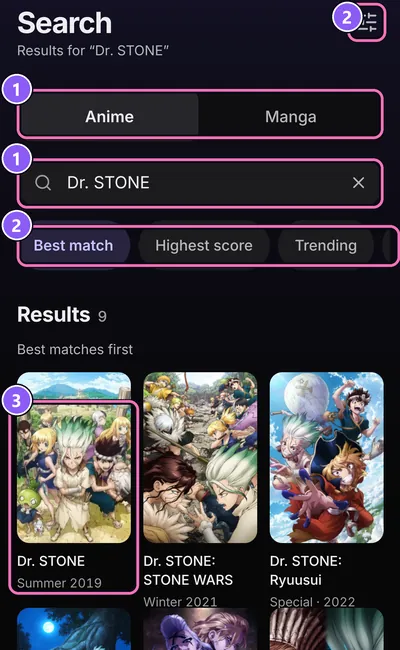
Where Search in the bottom bar
- Choose anime or manga and type a title.
- Narrow the results with Filter and change the order with Sort by.
- Tap a result to open it.
Your Recent searches show under the empty search field. Clear removes them.
Schedule
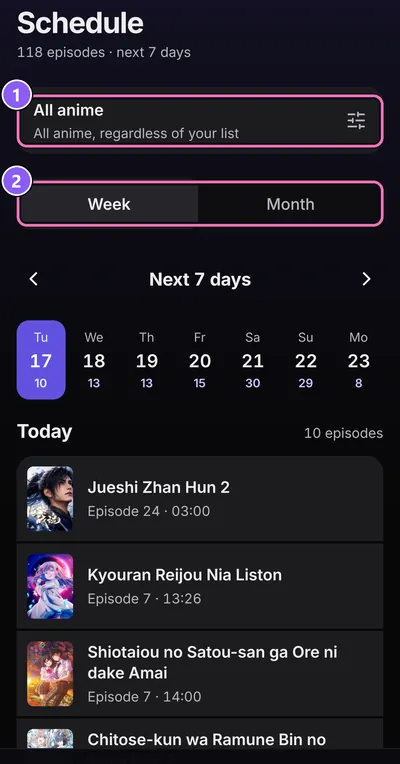
Where MenuSchedule
When the next episodes air, day by day. Switch between Week and Month, and between My AniList and All anime.
Calendar filter picks the list statuses to show, the day the week starts on, and whether watched episodes get marked.
History
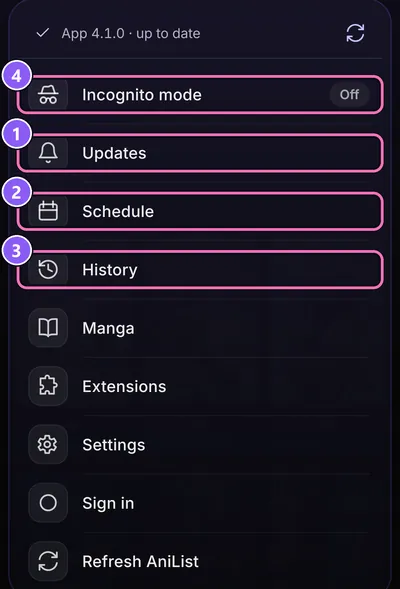
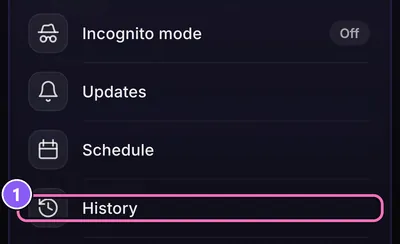
Where MenuHistory
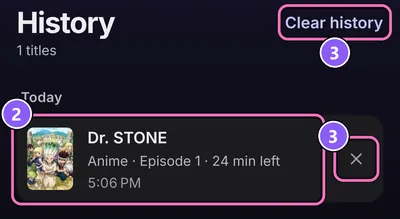
Every episode you watched and chapter you read, by day, split into anime and manga.
- Open History from the menu.
- Tap an entry to continue where you stopped.
- Remove from history (the ×) deletes a single entry. Clear history at the top empties it.
Neither touches your AniList.
Updates
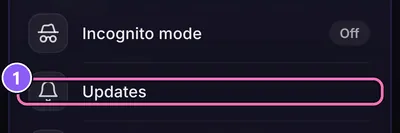
Where MenuUpdates
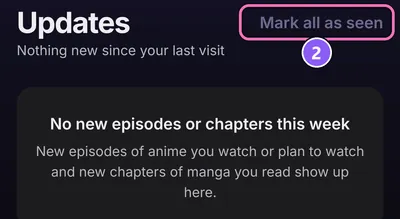
New episodes of anime you watch or plan to watch, and new chapters of your manga, since your last visit.
- Open Updates from the menu.
- Mark all as seen clears the list.
Incognito mode
Where MenuIncognito mode or SettingsAppIncognito mode
- Tap Incognito mode in the menu. The label next to it says whether it's on or off.
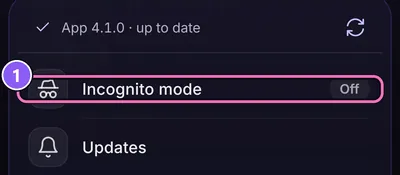
While it's on, nothing you watch or read lands in History or Continue watching, and automatic progress updates pause. An episode you mark as watched yourself still goes to AniList. History says Incognito: nothing new is added, so you don't forget it's on.